Verify metafield definitions, discount, and granted scopes.
Manual Actions
These are normally created during install. Use if you want to re-run.
Creates metafields for both products and app configuration. Product fields:
request_quote:boolean, bulk_pricing:json. App config fields: portal_id:text, form_id:text.
Discount: Bulk Pricing
Discount.
HubSpot Settings
Configure your HubSpot portal_id and form_id. Default values are provided automatically.
How to Use This App
Initial Setup
This app helps you set up bulk discounts and manage product metafields in your Shopify store.
Follow
the steps below to get started:
Run Setup Check: Click the "Run Setup Check" button to verify that all
necessary metafields and discounts are in place.
Create Metafields: If any metafields are missing, use the
Create
All
Metafields button to add them to your products.
Create Discount: If the bulk discount is not set up, click the
Create
Discount button to create it.
Configure HubSpot Settings: Enter your HubSpot portal ID and form ID in
the
provided fields and click Save to store your configuration.
If you encounter any issues, please ensure that the app is properly installed and that you
have
granted the necessary permissions.
Adding bulk pricing JSON
To enable bulk pricing for a product, you need to add a JSON structure to the product's
metafield.
Here's how to do it:
Go to the product in your Shopify admin.
Scroll down to the Product metafields section.
Enter the following JSON structure in the value field:
{
"25": 30,
"50": 45
}
In the example above the "25" represents the quantity and the
30
represents the discount amount.
Important:Make sure there are no trailing commas in your JSON, as
this
will cause errors. After adding JSON click the Format JSON button to confirm that
your
JSON is correct.
Click Save to apply the changes.
This JSON structure defines the base price and the discount amount for bulk purchases.
Adjust
the
values as needed for your pricing strategy. You can have as many quantity-discount pairs as
you
need.
Request a quote buttons for a single product
To enable request a quote buttons for a product, you need to set the product metafield
Request a Quote to True.
Go to the product in your Shopify admin.
Scroll down to the Product metafields section.
Change Request a Quote to True.
Open Online Store Customizer.
Navigate to the product page.
Add Request a quote block to your desired page.
Click Save to apply the changes.
Request a quote buttons for multiple products
To enable request a quote buttons for multiple products, you need to add a JSON structure to
each product's
metafield.
Here's how to do it:
Go to the Collections in your Shopify admin.
Create a collection and add the relevant products to it.
Go to your Online Store Customizer.
Add Request a quote block to your desired page.
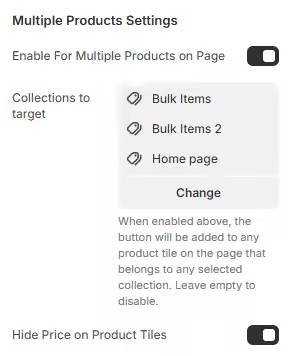
Check box for Enable For Multiple Products on Page
Add the collections you want to include in the quote request.
Customizer screenshot
Click Hide Price on Product Tiles to hide the prices.
Click Save to apply the changes.
Bulk Pricing Block
To display bulk pricing information on your product pages, you can use the Bulk Pricing
block.
Here's how to set it up:
Go to your Online Store Customizer.
Navigate to the product page.
Add the Bulk Pricing block to your desired location on the product
page.
Customize the appearance and settings of the block as needed.
Click Save to apply the changes.
The Bulk Pricing block will automatically display the bulk pricing information based on the
JSON structure you have added to each product's metafield.
What is Add Below Buy Buttons?
The Add Below Buy Buttons feature adds the block to the area below the buy
buttons container.
Note:The table will always display below the request a quote
button.